
Create Your Emails in CANVA + Send Them with FLODESK
How to Create Emails in Canva and Send Them in Flodesk
If you've ever designed an email in Canva and then wished you could send that exact design without rebuilding it in another tool, this workflow fixes that. I can create the visual part of my email in Canva and move it straight into Flodesk with one click.
That saves time, keeps my branding consistent, and lets me finish the email where the sending tools live. Below, I walk through how I set up the design in Canva, send it to Flodesk, and finish it before it goes out to my list.
Why Canva and Flodesk work well together
This tutorial was sponsored by Flodesk, and I was glad to cover it because I use both tools in ways that make sense for small businesses. As a Canva Verified Expert and a Flodesk partner, I pay close attention when a feature removes extra steps without making the process harder.
What I like most is the split between design work and email work. Canva is where I build the look of the email. Flodesk is where I handle the parts that belong in an email platform, like interactive content, testing, scheduling, and automation. That means I don't have to create the same email twice.
Here is the simple way I think about it:
Use Canva for
Layout, sections, images, colors, headers, and button design
Use Flodesk for
Countdown timers, polls, test sends, scheduling, templates, and workflows
Once I keep that boundary clear, the process stays easy to repeat. I can focus on design first, then move into sending and automation second.
This setup also helps me show up in my audience's inbox with emails that feel on-brand. Instead of fighting with formatting in two different places, I can build the main design once and finish the functional details after the handoff. If you want the official product overview from Flodesk, their guide on how to import your Canva email into Flodesk follows the same process I use here.
How I build the core email in Canva
Find the email builder fast
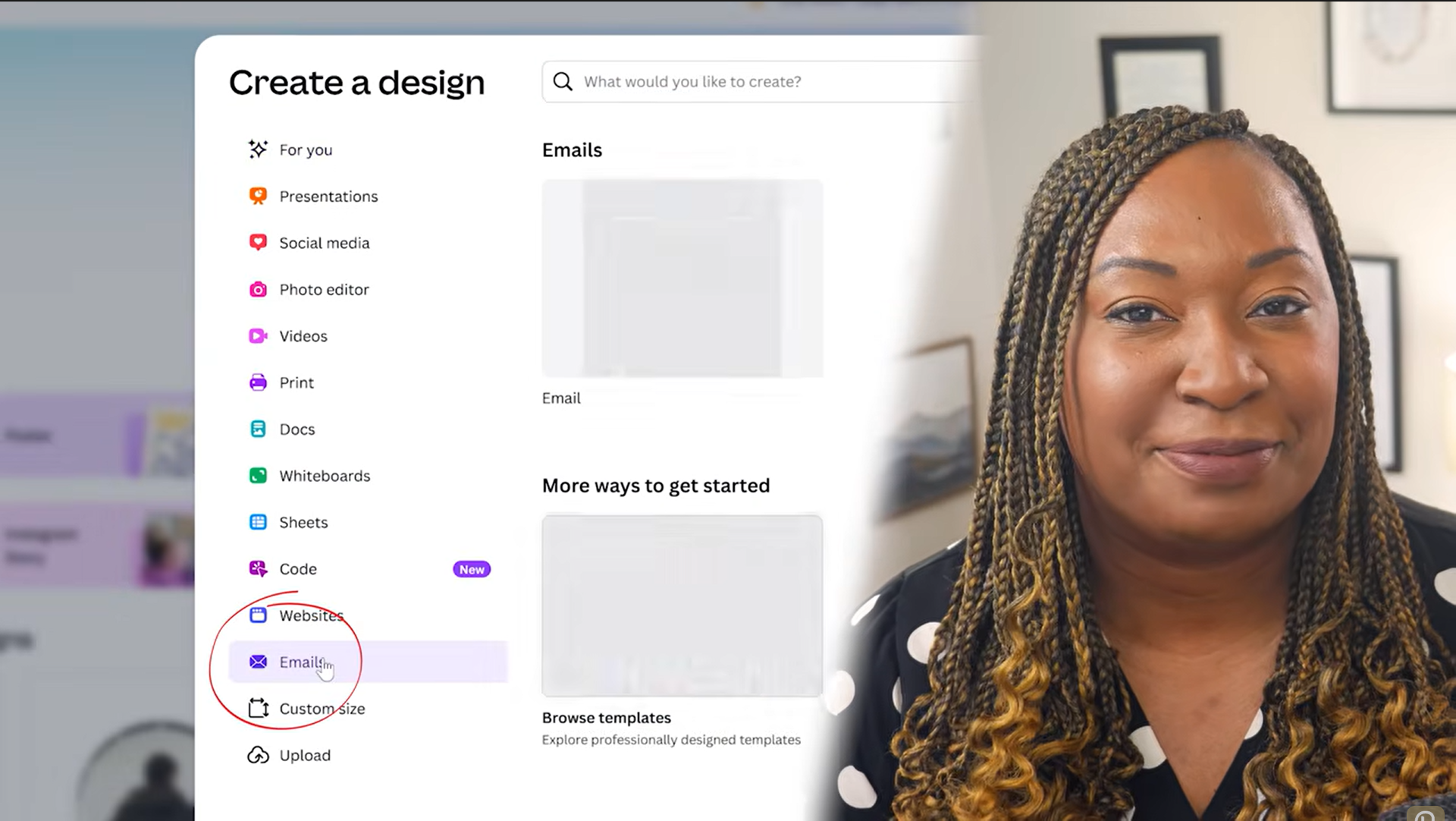
When I start, I head to Canva first. From the Canva dashboard, I tap "Create" on the left-hand panel and select "Emails." Canva also gives me an email option under the "What will you design today" search bar, so I can get to the same place from there too.
Either path opens the email designer in Canva, and that is where the whole process begins. I don't need a separate design file or a workaround. I start inside the email format from the beginning, which makes the next step much cleaner.
Keep Canva focused on design
Once the editor opens, Canva feels like any other design workspace. I can use Canva's elements, photos, layouts, and uploaded brand assets the same way I would in any other project. If I already have my logo, colors, or graphics in my Brand Kit, that cuts down on setup time right away.
I also like that Canva gives me a prompt box to describe what I want the email to say. If I know the message but I'm not sure which layout fits it best, I can type a short description and let Canva sort through templates that match. That doesn't replace my judgment, but it gives me a fast starting point.
The key is knowing what to design here and what to leave for later. I use Canva for the core elements of the email, like the header, the body layout, the images, the sections, and the visual buttons. I leave interactive elements, like a countdown timer or a poll, for Flodesk. Those features work better inside the email platform, and keeping them there saves me from trying to fake interactivity in a design tool.
What I check before I export the email
Edit the header and link the right pieces
One detail I don't skip is the email header. In Canva, email headers have their own editor. When I want to change that part of the design, I double-tap the header and open the pop-up editor. That makes it easy to adjust the top of the email without guessing where that setting lives.
I also pay attention to links while I'm still in Canva. Anything in the design can link out to an external page, so if I have a button in the layout, I can connect it to a sales page, a landing page, or a Flodesk checkout page. That helps the design and the next action work together.
If Flodesk Checkout is part of the plan, I also have a full post on Flodesk Checkout FAQs that covers how that part of the platform works.
Use email-safe fonts and clean URLs
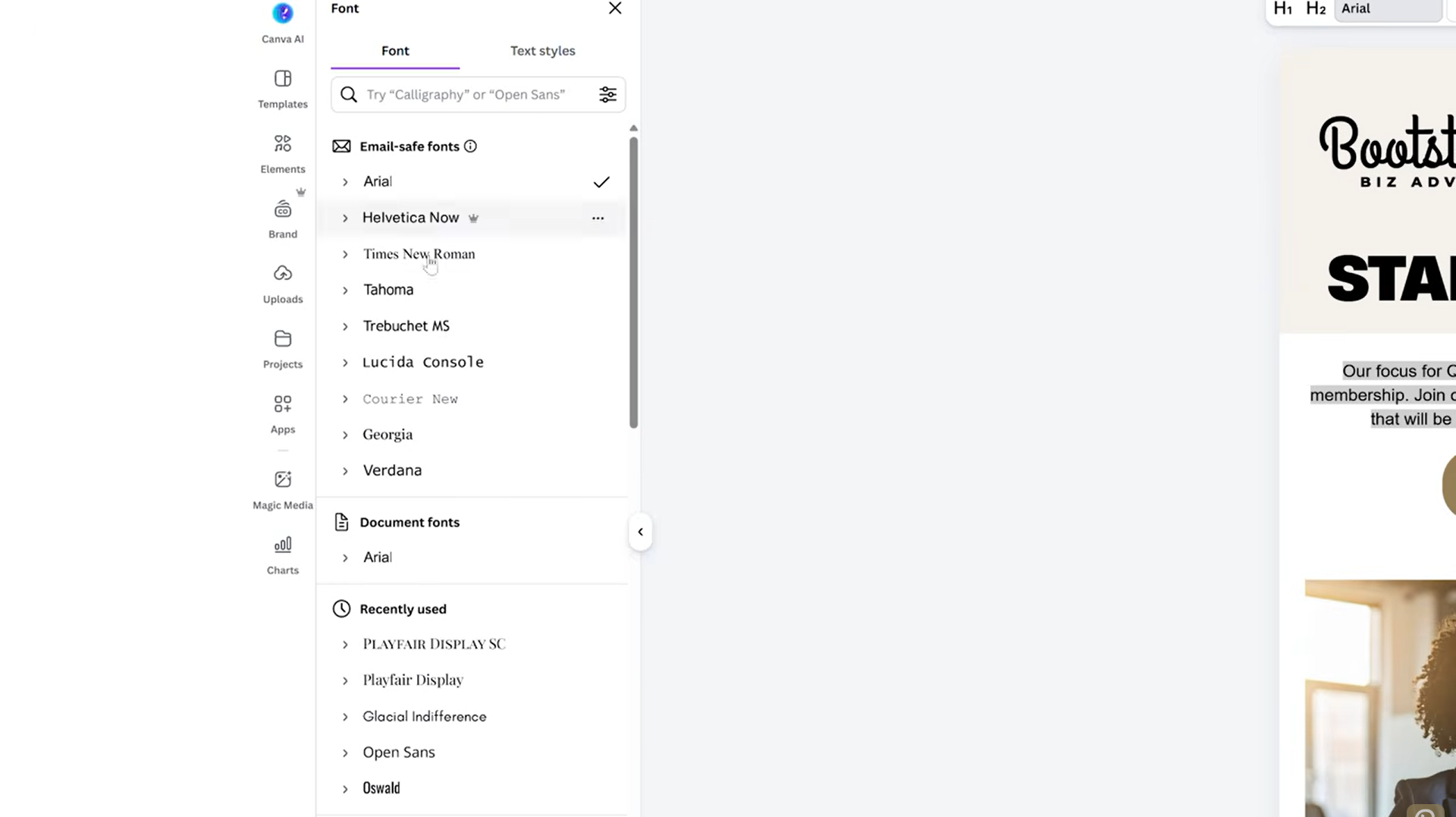
Fonts matter more in email than many people expect. Canva will tell me if the font I've chosen is email safe, and I treat that notice like a final quality check. A font can look great inside the editor and still cause problems once the message reaches different inboxes and devices.
I also check every link before I send the design over. That matters for the reader experience, but it also matters for deliverability.
I make sure every link is secure, and I avoid short links inside the Canva email design. That small step helps the email stay out of spam.
This is one of those details that feels minor until an email lands in the wrong folder. A full secure link gives email providers more trust signals than a shortened one, so I don't skip this step. By the time I hit export, I want the layout, fonts, and links to be ready.
How I finish the email in Flodesk
Send the design from Canva to Flodesk
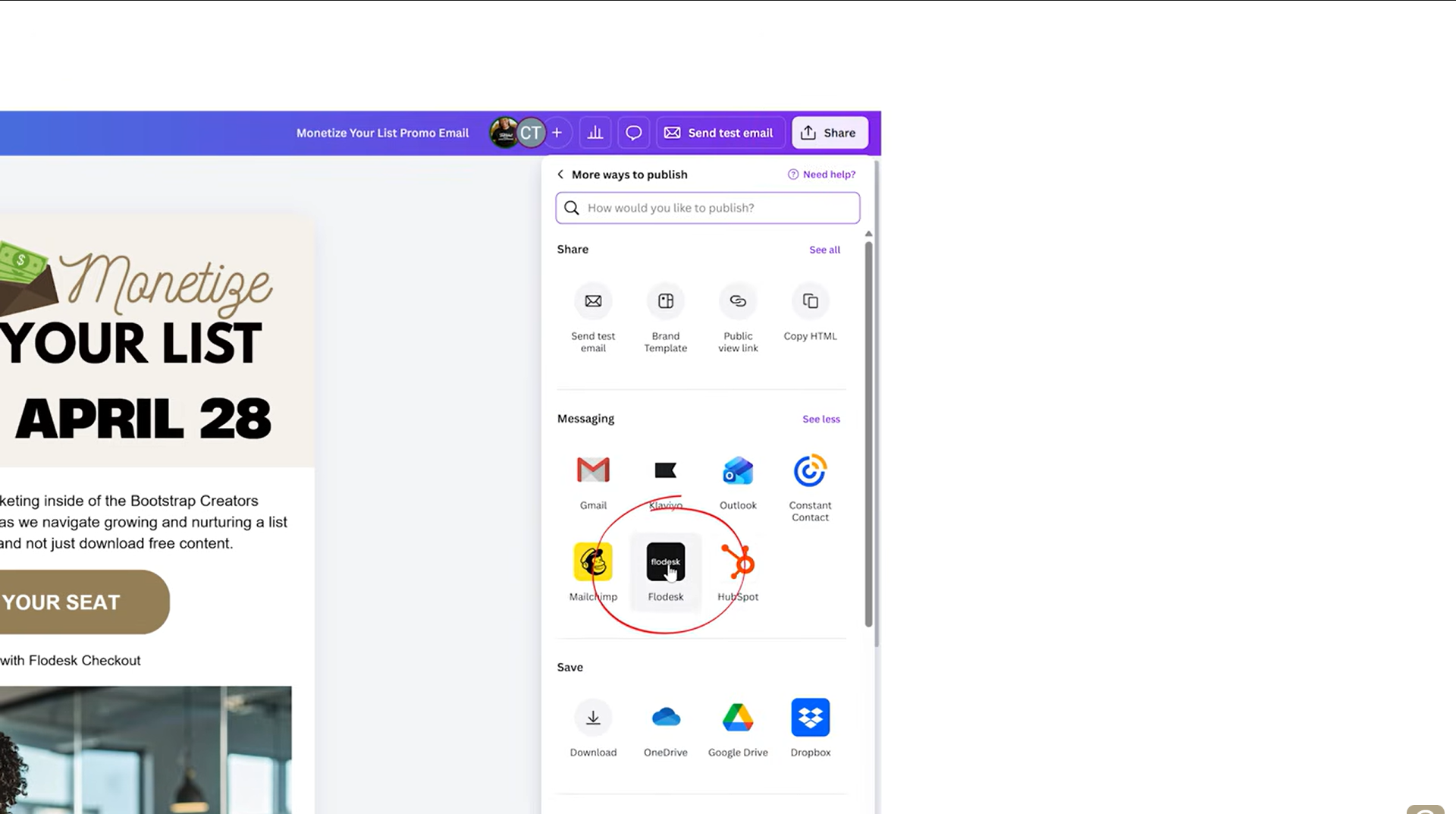
After the design is done, I go to "Share" in the top-right corner of Canva and select Flodesk. Canva then sends the design into Flodesk inside a blank email, which gives me a clean place to finish the rest of the job.
That handoff is the part I like most. My design arrives where I need it, but I still have room to add the pieces that make it function like a real email campaign. I don't feel boxed in by the design tool, and I don't have to rebuild the email from scratch inside the sending platform.
Add the interactive parts, then test and schedule
Once the design lands in Flodesk, I add the interactive elements I left out on purpose. In the tutorial, I mention things like a countdown timer and a poll. I add those at the top or bottom of the Canva-based email after it reaches Flodesk, which keeps the design strong without asking Canva to do jobs that belong to an email platform.
I also send myself a test email from Flodesk before anything goes out to my audience. I want to see the spacing, images, buttons, and overall look exactly as a subscriber would. A test send catches small issues fast, and it gives me the chance to make one last pass before I schedule the email.
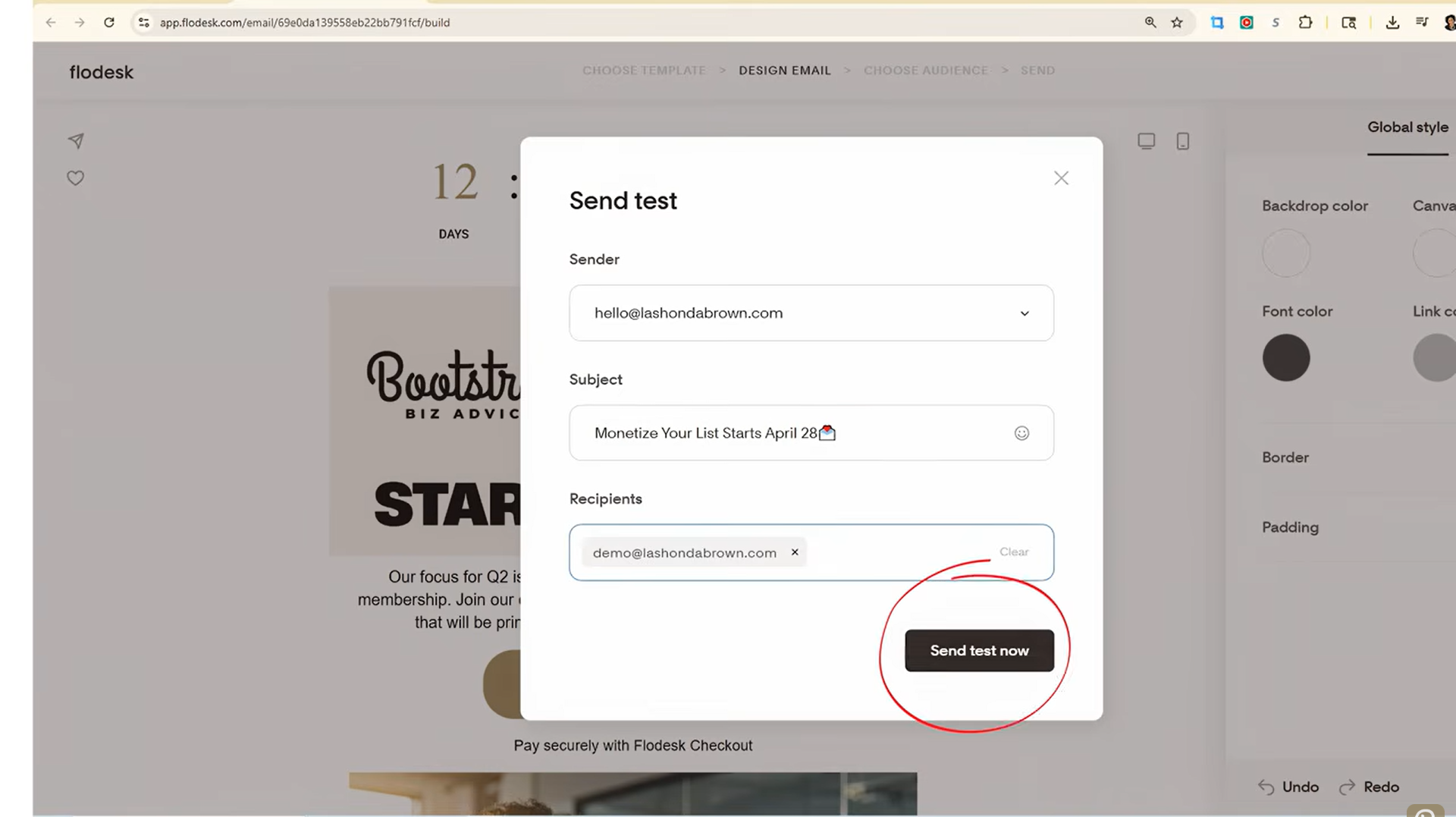
From there, I can schedule the email to go out to my community. I can also save the design and turn it into a template to sell. If I want to use the design inside a workflow, I can do that too. That opens the door to something bigger than a one-time newsletter. A design can become part of an automated series, or even part of a digital product built around email content.
That is why I don't see this as a one-and-done feature. It turns a good-looking email into something reusable.
Why I recommend this setup for small businesses
For small businesses, this workflow solves a real problem. I want emails to look polished, but I don't want to burn time rebuilding designs or wrestling with layout limits in the wrong platform. Canva gives me a strong design space, and Flodesk gives me the sending tools that make the email useful after it leaves my desk.
I also like that the work carries farther. One design can become a broadcast today, a reusable template later, and part of a workflow after that. That gives me more return on the time I spend designing.
Because of that, I do recommend having subscriptions to both if email is a steady part of your marketing. If you're still weighing whether Flodesk is the right fit, I also shared a Flodesk vs Mailchimp and ConvertKit comparison. If you want more hands-on platform help after this, my Flodesk tutorial playlist has more than 20 walkthroughs.
Final thoughts
The best part of this Canva and Flodesk setup is that I don't have to choose between design freedom and email features. I can build the visual story in Canva, then finish the sending, testing, and interactive pieces in Flodesk where they belong.
When I keep each tool in its lane, the whole process feels easier to repeat. That makes it much simpler for me to show up in my audience's inbox with emails that look good, work well, and are ready to send.
About the Author

LaShonda Brown is an award-winning Tech Educator, Affiliate Marketing Consultant, YouTube Coach and Speaker based in the beautiful Blue Ridge Mountains of VA.
Through her YouTube channel & tech education company, Bootstrap Biz Advice, LaShonda teaches service providers worldwide how to work less & live more by leveraging tech and YouTube. LaShonda heavily advocates for sustainable, healthy rhythms in business and is most well known for her 20-Hour Work Week practice that’s built on the foundation of deep focus work and a mindful morning routine.
LaShonda is a Flodesk University Instructor & Flodesk Partner and in 2022, LaShonda became one of the first 25 Canva Verified Experts in the world. In addition to training organizations of all sizes about Canva & Flodesk, LaShonda advises startup SaaS brands about how to transform paid users into engaged ambassadors through community initiatives and innovative affiliate programs.

Try the Bootstrap Biz Advice App for FREE Today | BootstrapBizAdvice.com